Inspect the GLB scene
Identify the printable object, remove cameras and decorative elements, and check whether the selected mesh is closed enough to form a solid. Confirm a real-world reference measurement.
Print preparation
Can I use GLB for 3D printing? Usually, GLB is a useful starting point rather than the final file a slicer expects. The reliable path is to extract the mesh, convert it to STL, then inspect scale, watertightness, normals, and thin features before slicing.

Use an online workflow when you want to move from a GLB scene to a shareable STL without changing the source model first.
Review the texture limitation before printing, because STL carries shape data rather than the full appearance of a GLB asset.
Use a Blender-based route when you need hands-on control over object selection, scale, normals, or mesh repair.
A file conversion can change the container and mesh representation, but it cannot guarantee that every asset is ready for a physical printer.
A GLB may contain open edges, internal faces, intersecting shells, or paper-thin surfaces. The exported STL can still fail in a slicer or produce unexpected walls.
WorkaroundRun a mesh repair or solidness check, then inspect the repaired shell before generating supports.
GLB may include textures, materials, lighting, cameras, and animation. STL generally represents geometry and does not carry that complete visual scene.
WorkaroundUse the GLB as the visual reference and validate the STL by shape, dimensions, and surface continuity.
The conversion does not know your nozzle, resin profile, layer height, build volume, or preferred orientation. A geometrically valid STL can still be unsuitable for a particular machine.
WorkaroundSet orientation, supports, scale, and slicing parameters in the software configured for your printer.
GLB scenes can be authored with inconsistent or missing unit conventions. The exported STL may look correct while importing at an impractical size.
WorkaroundChoose a known reference dimension and verify the model's measurements before slicing.
Choose the workflow that matches how much control you need over the source scene and the final physical part.
Identify the printable object, remove cameras and decorative elements, and check whether the selected mesh is closed enough to form a solid. Confirm a real-world reference measurement.
Send the relevant geometry through a GLB-to-STL workflow and keep the output focused on the object you intend to print. Avoid exporting an entire scene when only one part is needed.
Open the STL in your mesh checker or slicer, look for holes, reversed faces, bad scale, and unsupported overhangs, then make a small test print before committing to a long job.
The same conversion path serves different makers, but each person should validate the STL for a different reason.
You have a textured GLB concept from a review and need a plain geometry file for a quick form study.
A checked STL gives the slicer a focused mesh while the GLB remains the visual reference. For a browser-based route, see the glb to stl online workflow.
glb to stl onlineYou need to isolate one object, apply a precise scale, and repair geometry before exporting for fabrication.
A controlled scene cleanup reduces surprises at import and makes the final STL easier to measure. The convert glb to stl blender guide follows that hands-on path.
convert glb to stl blenderYour GLB looks correct on screen, but small details and thin walls may disappear at the chosen print size.
Checking wall thickness, features, and supports before slicing helps preserve the intended silhouette. If you need a different mesh exchange format, compare glb to obj.
glb to objA rendered GLB is being handed from a visualization workflow to a fabrication partner who needs a simple mesh.
A clearly named STL plus reference dimensions makes the handoff easier to review, measure, and reproduce. Texture-heavy assets should be assessed with glb to stl with texture in mind.
glb to stl with textureThe formats serve different stages of the job. Keeping that distinction clear prevents a visually complete scene from being mistaken for a production-ready solid.
GLB source
Scene delivery and real-time 3D viewing
STL output
Triangle mesh exchange for fabrication workflows
GLB source
Can carry materials and texture references
STL output
Does not preserve the complete textured appearance
GLB source
May include cameras, lights, and animation data
STL output
Contains mesh geometry rather than the full scene
GLB source
May contain several objects or presentation-only surfaces
STL output
Should contain the selected surface mesh for inspection
GLB source
May depend on the authoring scene's unit assumptions
STL output
Still requires explicit measurement after import
GLB source
Usually needs selection or conversion first
STL output
Can be opened for repair, orientation, supports, and slicing
GLB source
Does the scene look and behave as intended?
STL output
Is the mesh closed, correctly sized, and printable?
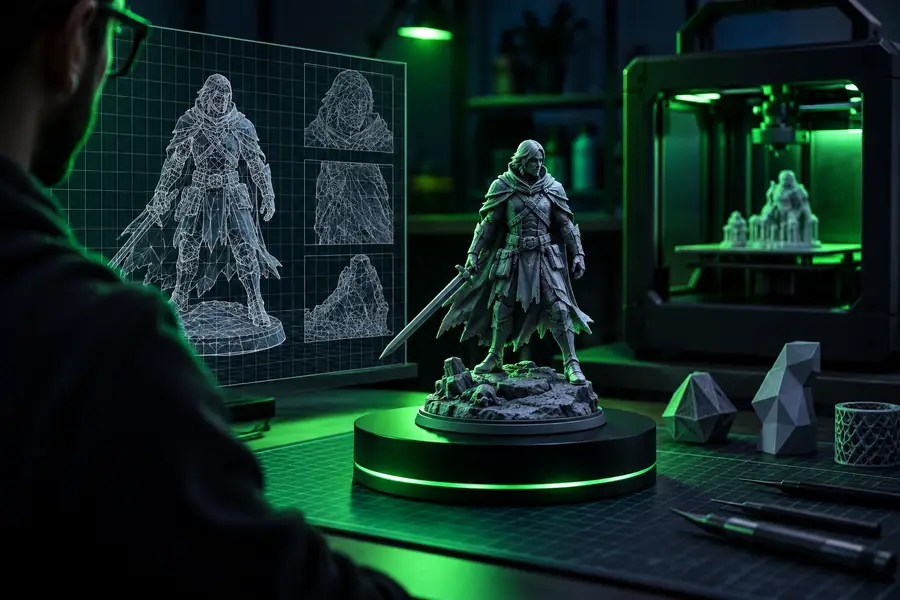
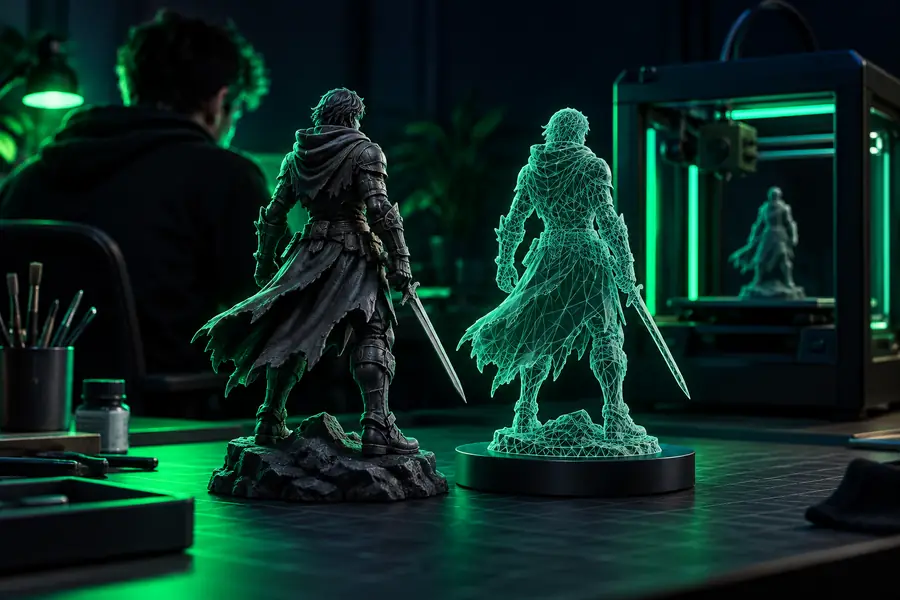
The visual result is only a candidate until scale, shell integrity, wall thickness, and supports have been checked in the slicer.
Turn a GLB scene into a clearer STL handoff for inspection, repair, and slicing. Start with the object you actually want to make, then review the output against a known dimension before committing material or machine time.
Yes, but usually not as the final file sent directly to a slicer. Convert the relevant GLB mesh to STL or another format supported by your fabrication workflow, then check scale, watertightness, normals, thin walls, and overhangs.
Check that the intended object is present and that unwanted cameras, lights, or scene elements were not treated as printable geometry. Then verify dimensions, closed surfaces, face orientation, non-manifold edges, wall thickness, and the preview in your slicer.
No, not automatically. Textures and materials describe digital appearance, while a typical STL export focuses on the mesh shape; color or surface appearance requires a separate manufacturing process and compatible workflow.
GLB scenes may use different unit assumptions, and STL does not reliably carry the same scene context. Measure a known feature, set the intended dimensions in your mesh or slicer software, and confirm the final scale before printing.
Conversion alone is not a complete repair step. If the source has holes, self-intersections, flipped normals, or extremely thin surfaces, use mesh-repair tools and inspect the repaired result before treating the STL as print-ready.