3D Glbtostl

Format guide

Looking for glb to stl free options?

If you need a glb to stl free workflow, start with the mesh rather than the price tag. GLB can contain materials and a scene; STL carries geometry. A successful export still needs a model your intended software can use.

Check available export options
Glbtostl 3D model workspace

Prerequisites

Have the source file and a clear purpose for the STL. These common starting points call for different checks before you choose a conversion route.

First-time converter

You have a GLB from a download and do not know whether it contains one mesh or an entire scene.

Inspect its objects and geometry before deciding what to export. A valid file is not necessarily a usable STL.

Can GLB be converted to STL?

Browser-based worker

You want to avoid installing desktop software for a single model.

Check upload requirements, supported exports and file handling before sending a GLB to an online service.

glb to stl online

3D-printing hobbyist

The GLB looks right on screen, but its walls or separate shells may not slice correctly.

Check scale, thickness and watertightness after exporting the STL.

Can I use GLB for 3D printing?

Texture-focused artist

The source GLB depends on colors or image textures to communicate its design.

Keep a textured copy in a suitable format; do not expect an ordinary STL to preserve its appearance.

glb to stl with texture

One full run-through

For a glb to stl free attempt, follow the file from inspection through verification. Do not treat an export button as the final quality check.

Inspect the GLB

Open the source in a tool that can display its meshes. Identify the parts you need, remove irrelevant scene objects if the tool permits, and note the intended physical dimensions.

Prepare and export geometry

Look for an STL export in the tool you chose. If one is available, select the intended mesh and export it; if not, use a separate converter or desktop editor that explicitly supports both formats.

Verify the STL

Reopen the result in a mesh viewer or slicer. Check its size, orientation, missing parts and mesh errors. Repair the source or exported mesh, then repeat the export if those checks fail.

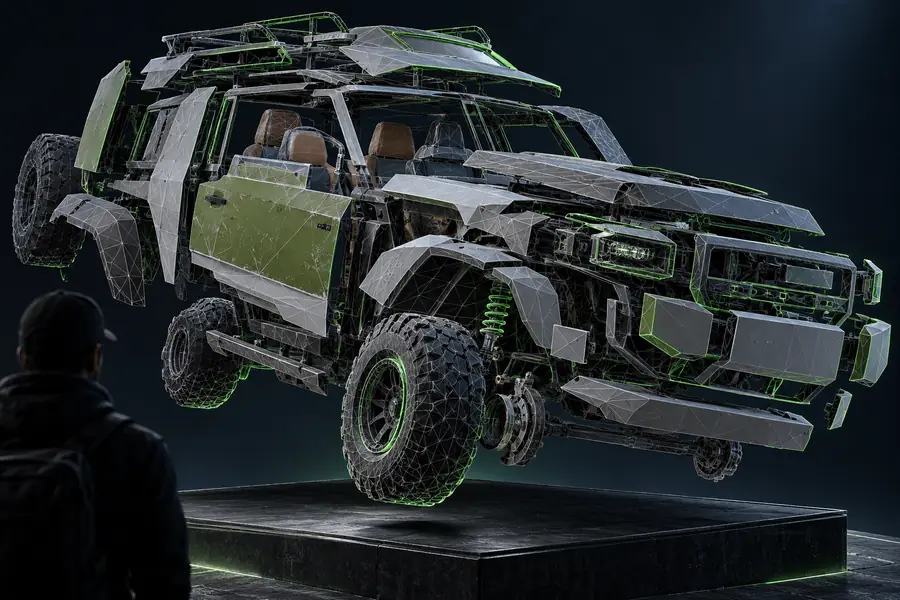
What changes between formats

GLB source

Illustration of a GLB model before mesh preparation
Illustration of geometry prepared for a 3D-printing workflow
STL-ready geometry

Illustrative comparison, not a verified export. GLB can include visual properties that a standard STL will not retain; inspect the resulting mesh rather than judging it by this image.

What fails

A free route does not remove format limits or fix a damaged model automatically. These problems can survive a technically successful GLB-to-STL export.

Textures disappear

Standard STL stores mesh geometry, not the GLB's image textures or material appearance. A converted object may therefore look plain even when its shape is intact.

WorkaroundKeep the GLB for display, or choose a format such as OBJ when your downstream workflow needs material-related data.

Open or intersecting surfaces remain

Export does not guarantee a watertight, printable object. Holes, overlapping shells and paper-thin surfaces can cause problems in a slicer.

WorkaroundInspect and repair the mesh in an editor, then check the exported STL again.

Scale may be wrong

A model that appears normal in a GLB viewer may import at an unexpected physical size elsewhere. Do not infer real-world dimensions from its on-screen appearance.

WorkaroundSet or confirm units in the destination tool and measure the STL before printing.

Export may be unavailable

This page does not establish that the linked app provides direct GLB import, STL export or unrestricted conversion. Its available controls and access terms must be checked there.

WorkaroundIf either format is unsupported, use a tool that explicitly lists GLB input and STL output.

Continue with a model check

Inspect the model before committing to an export

Glbtostl links to an external 3D workspace where you can check the available tools for your project. Confirm file support and access terms there; if you need an STL, verify the exported geometry in a viewer or slicer afterward.

  • Check supported input and output formats
  • Review the mesh, not just its appearance
  • Confirm dimensions in the destination tool

FAQ

Some tools offer a no-cost conversion route, but their file limits, access requirements and export features vary. Check the terms of the specific tool before uploading. A successful conversion still needs a mesh and size check.

Not in a standard STL. The format represents surface geometry rather than the GLB's image textures and materials. Keep the original GLB if you need its appearance later.

Not necessarily; browser-based tools may support the formats you need. A desktop editor is useful when you must select parts, repair geometry or control export settings. Check a browser tool's file handling before uploading sensitive models.

The source mesh may have holes, intersecting surfaces, disconnected pieces or walls too thin for the intended print. The STL may also have imported at the wrong scale. Inspect it in the slicer, repair the mesh and export again.

Open 3D studio
Open 3D studio